
Need Help?
Please leave your contact information to get our latest catalog
Get In Touch Now >

Author:SOP Work Pods Manufacturer TIME:2026-11-06
A person approaching a pod needs to know whether they can reserve it, whether a reservation is about to begin, and which enclosure the screen describes. They do not need to learn the current caller's name or meeting subject. A door-side display earns its place by making that decision clearer without turning the doorway into a queue or a public calendar of private work.
For buyers comparing phone booth office pods, treat the display as an optional equipment interface with its own supplier, mounting method, services, and support. This article proposes a selection exercise, not a report of an installed SOP system. It assumes neither built-in booking controls nor compatibility with a particular platform.
Describe the approach before selecting hardware. Does the employee already hold a reservation and need to find the right unit? Are they looking for a short unplanned slot? Must they check in at the door? Each question asks something different of the display. Choose the recurring outside decision and reject features that do not help it. A read-only status screen may be enough for an assigned reservation; a local booking action may matter where people regularly arrive without one.
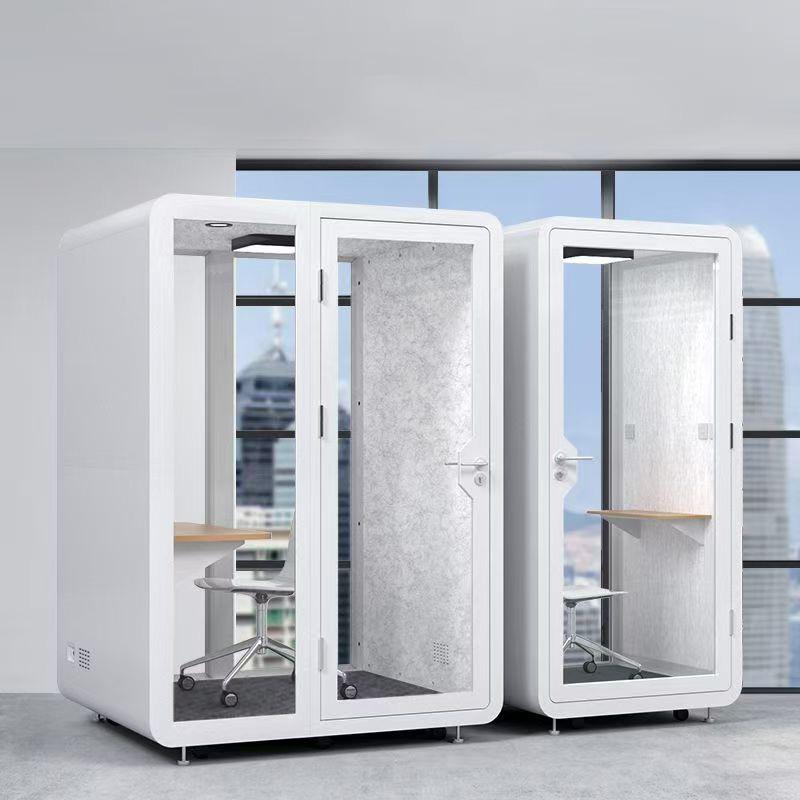
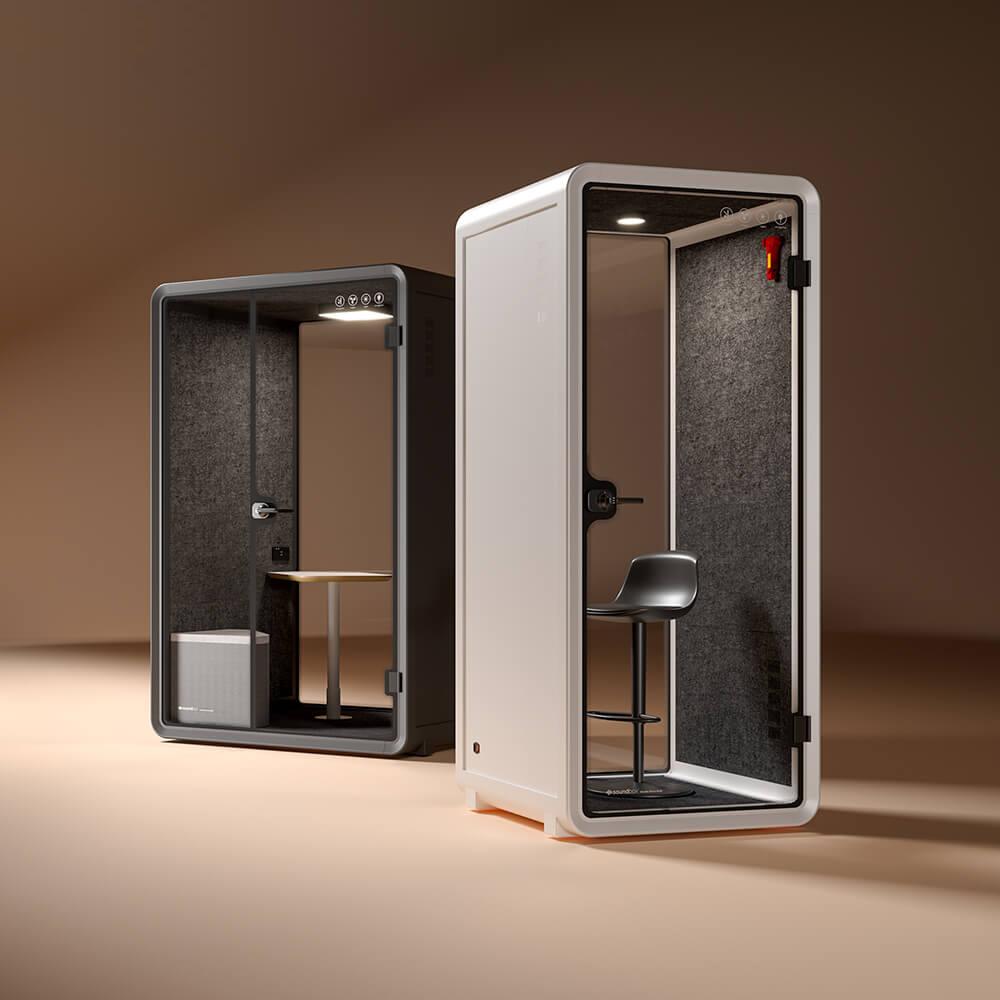
Name the phone booth pods consistently on the floor plan, in the booking system, and beside their entrances. If two pods stand together, a person should not need to infer which door belongs to a nearby screen. Use a harmless mockup to test that relationship before buying brackets or screens. Include the actual door direction and approach, not a cropped supplier photograph.
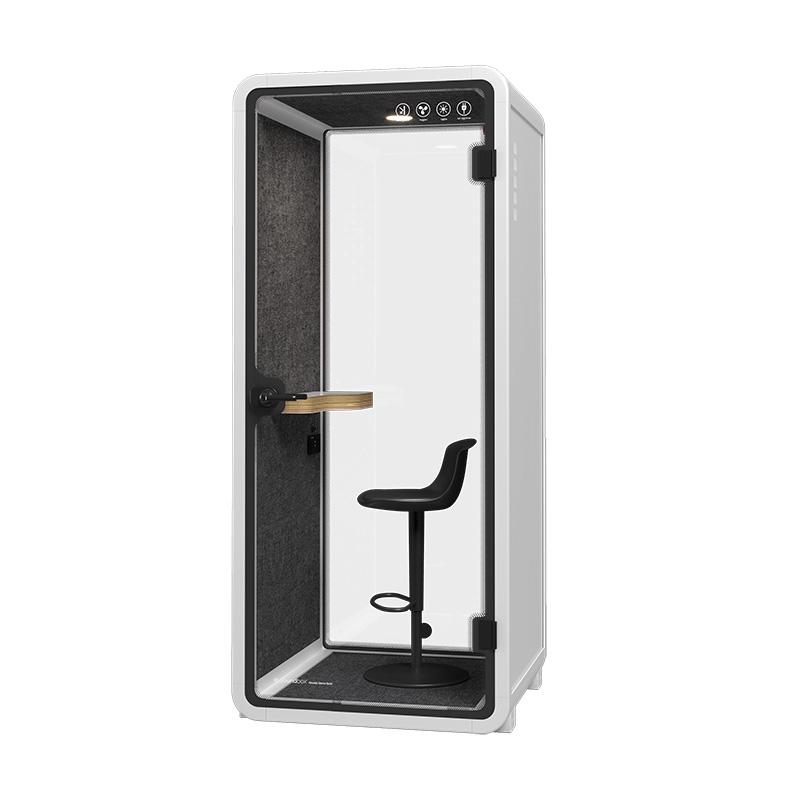
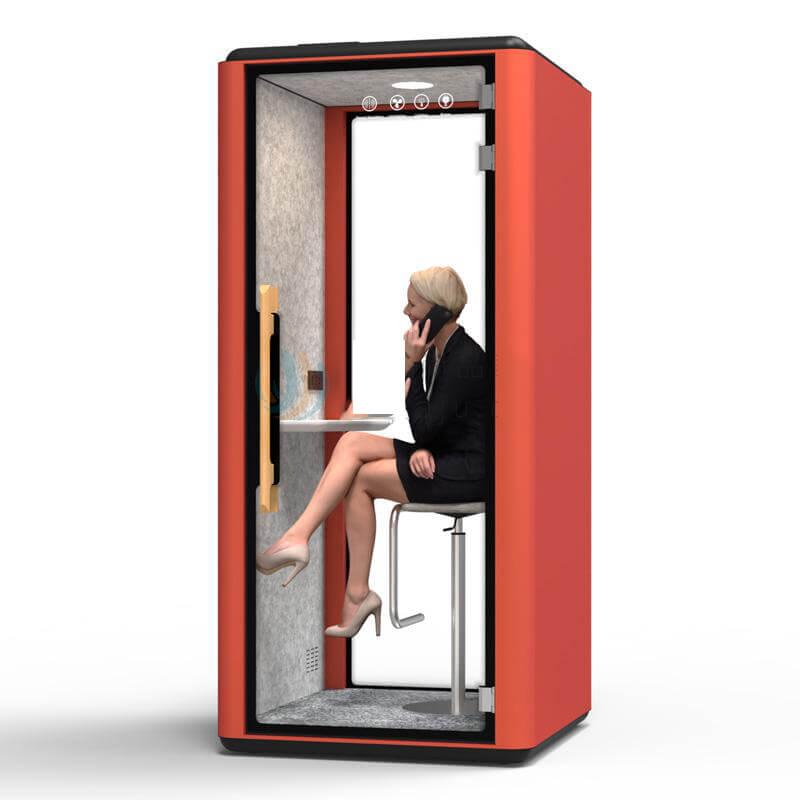
The public SOP-PB102 detail identifies a one-person enclosure, a foldable desktop and a bar chair. It lists power sockets and network cable interfaces, not an included door-side scheduling panel. That distinction gives a concrete starting point: the booth supplies an enclosure and named services; the proposed display still needs a separate scope. Public internal dimensions differ between the overview and technical table, so neither figure should control an accessory bracket. Use a confirmed drawing for the actual fixing position.
Hypothetical planning example: two neighboring units are named Call A and Call B. A read-only panel shows Call A's next reservation without a caller name. A printed resource label remains beside the same door if the display is unavailable. This is an illustrative purchasing option, not a deployed SOP booking system or a claim that PB102 supports a particular calendar platform.
Ask the booking provider what each proposed message means. Reserved describes a calendar claim on time. Checked in may describe a user action. Occupied needs a supported source of information about use. Those messages are not interchangeable, and an empty-looking calendar is not a view through the door. Do not add occupancy detection to the specification merely because a display offers a red or green light.
Write ordinary wording for the states the chosen service can actually support: reserved until a stated time, available to reserve, awaiting check-in, or status unavailable. A provider may offer different labels; test their meaning with the workplace team instead of assuming a color explains it. This exercise selects an outside interface. It does not test still-body detection, change interior lighting behavior, or propose any automatic relationship between booking state and ventilation.
Have the system owner create a harmless sample reservation for the intended resource. Examine what the outside screen shows before the start, during the reservation, and after its scheduled end. Ask the demonstrator to identify which changes follow the calendar and which follow a supported user action. The point is to choose understandable behavior, not to fill a table with hypothetical product capabilities.
Where check-in or automatic release is offered, ask what starts its timer, who can complete check-in, and what happens to the reservation if nobody does. A timeout can release calendar time without establishing whether someone is physically inside. Test only a documented feature in an authorized sample environment. There is no universal delay to copy into every office and no reason to improvise one from how long a meeting usually lasts.
Use the table to locate ambiguity in the offered interface. A cancellation, an early finish, and a scheduled end may lead to different actions for the user. Ask which of those actions is available from outside and which requires the reservation holder's approved account. Do not let a convenient public control become an unexplained ability to alter another person's booking.
| Display event | Question for the vendor | Outside decision |
|---|---|---|
| Reservation begins | What changes at the scheduled start? | Recognize the time claim, not inferred occupancy |
| Check-in period ends | What supported timer and action apply? | Understand release without assuming an empty pod |
| Holder finishes early | Who may release the remaining time? | Use only the permitted reservation action |
| Service status is unknown | How is missing current information shown? | Use the approved alternative booking route |
Place the proposed screen or a full-size mockup near the intended entrance without attaching anything to the enclosure. Approach from both normal directions and pause where a person can stand without blocking the door. Ask an unfamiliar colleague to identify the unit, understand its reservation state, and find the next permitted action. Observe whether they must lean across the doorway, stare through glazing, or stop in somebody else's working space.
Review text, contrast, reflections, and the display angle under the office lighting that will serve the location. Use both a standing and a seated approach where relevant to intended users. If interaction is needed, have the workplace's responsible access reviewer assess reach and operation for the proposed position. A screen that can be seen is not necessarily a control that can be used. Keep useful status readable without making the visitor navigate several pages, and do not rely on color alone to communicate the result.
Repeat the approach with the ordinary items someone carries: a laptop bag, notebook, or coat. Ask where those items go while the person touches the screen and then opens the door. If operation needs two hands, a long phone interaction, or several attempts, the panel may create a waiting position the layout never allowed for. Move the mockup or simplify the proposed action before choosing its final size. Also leave a practical route for cleaning the screen and reaching its service connections without occupying the entrance.
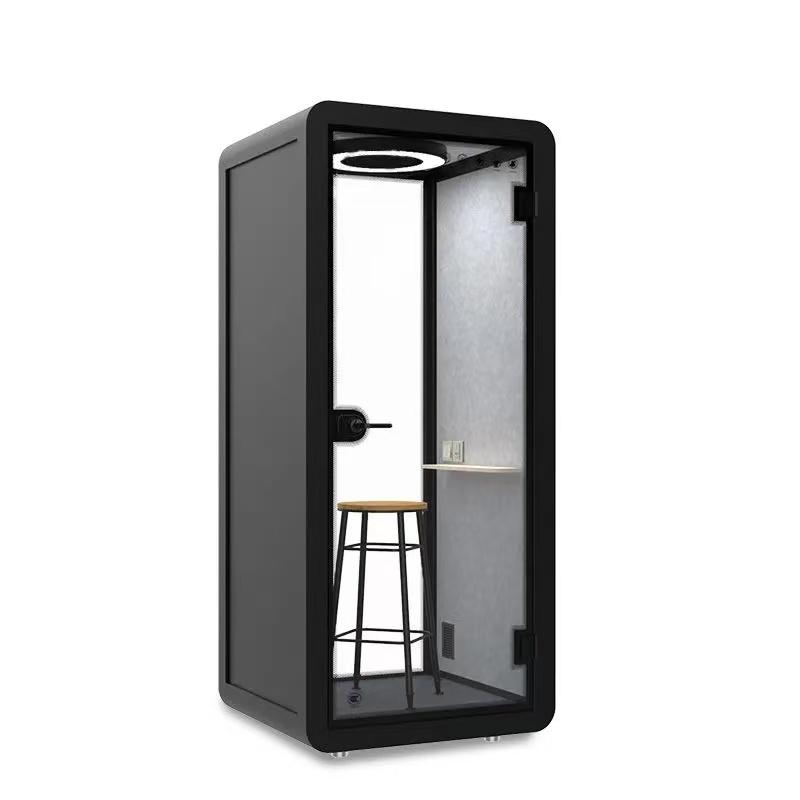
Send the pod supplier a sketch of the proposed screen, its dimensions, weight, bracket, and position relative to the hinge, handle, glazing, and operating door. PB102's published sheet-metal and tempered-glass construction describes materials, not an authorized fastening zone or a spare load allowance. Do not drill, clamp or attach adhesive pads to the enclosure on that basis. An adjacent wall or stand may avoid altering the shell, but still needs responsible approval and a clear relationship to the correct door.
Obtain the display manufacturer's installation requirements separately. PB102's listed internal and external network interfaces do not prove Power over Ethernet, calendar compatibility or a suitable exterior connector. Confirm those matters for the scheduling device and have both providers agree the cable route. Never feed a lead through a door seal, cover a ventilation opening or assume an internal socket may power an external panel. Keep installation with qualified people and leave ordinary screen removal possible for servicing.
When comparing SOP phone booth pods, send the supplier the proposed display location and ask which mounting and service interfaces are authorized for the quoted configuration; price the third-party display separately.
Decide the smallest public message needed to make the outside decision. Unit name, reservation state, and the relevant time may be sufficient. Ask the system owner to suppress subjects, attendee names, personal notifications, and account details wherever they are unnecessary. Use invented neutral test entries to inspect the proposed screen; real private meetings are not demonstration material.
Try the ordinary actions an approaching employee is meant to use: view the next permitted slot, reserve if allowed, or check in through the approved route. Examine what appears after each action and on returning to the normal screen. Do not explore administrator menus or another user's account. If a scan code or personal device is required, ask what alternative serves someone who cannot use that route and whether the display itself needs interactive controls at all.
Ask the vendor how an unavailable or outdated service is communicated. The desired outside behavior is an understandable unknown state, not a confident availability claim left over from an earlier connection. Have the vendor explain or demonstrate supported fault behavior in its test environment; do not cut workplace power or network services. Identify whom the user contacts when screen status and the normal reservation route disagree, without asking them to inspect the caller or interrupt a meeting to diagnose it.
Put the offered enclosure, permitted mount, display hardware, booking service, accounts or licences if applicable, power and data work, installation, and support on separate quotation lines. This makes an attractive image less likely to become an assumed package. Ask who supplies each part and who resolves a bracket problem, a stale reservation, or a damaged cable. A display vendor's compatibility statement needs to cover its actual service arrangement, while the enclosure supplier answers for the authorized physical interface.
Compare the read-only and interactive proposals against the outside decision from the first section. Extra controls are worthwhile only if people can use them appropriately and the owner can support them. Request a final sample showing the chosen public messages in the proposed position, plus the agreed installation drawing. Order only the included equipment and interfaces you can name. A clear status-only solution with an approved reservation route elsewhere may serve the workplace better than a more ambitious panel whose mounting, permissions, or support remain undefined.
Ask how a replacement display would fit the approved arrangement. A later model could use a different bracket, power method, or connector position even when its screen appears similar. The quotation should distinguish a replaceable device from an assumed permanent enclosure feature. If the pod moves, update the relationship between its physical label and calendar resource before reopening bookings. Otherwise a working screen could direct an employee to the wrong unit, which is an interface failure no amount of brighter status lighting will solve.
Do I need a touchscreen to show availability?
No, if a read-only display and the existing reservation route meet the intended doorway decision. Compare whether an unfamiliar user can identify the unit and understand the next available time without touching the screen. Interactive booking is useful only when its permissions, reach and support are defined.
Is a booking display included with SOP-PB102?
The public PB102 page lists a work surface, chair, lighting, power and network provisions but does not establish a supplied scheduling display. Treat the panel, software and installation as separate unless the offered configuration names them. A network interface is not evidence of calendar integration.
Does green mean the booth is empty?
Only when the documented message actually describes occupancy, with a defined source and limitations. Calendar availability can remain different from physical use. Prefer a clear reservation message and the workplace's normal approach routine over an unexplained color that encourages someone to interrupt.
Can a booking panel be mounted on the glass?
Do not assume that. The glass description does not authorize drilling, adhesives or a particular clamp. Obtain an approved mounting detail from the enclosure supplier and follow the display maker's installation requirements. Consider an approved nearby mounting surface where altering the pod is unnecessary.
What should the panel show when its connection fails?
An understandable unknown or unavailable status is preferable to an old availability message presented as current. Have the provider demonstrate its supported behavior using neutral test entries. Keep a normal reservation contact or route available without asking the caller inside to diagnose the display.
Choose the display from the doorway outward: the decision someone needs to make, the reservation message that supports it, the position they can read and use, and the authorized interface that makes installation possible. Keep actual occupancy distinct from calendar state and keep private meeting information off the public screen. Take the final position sketch and sample messages to the pod supplier, display vendor, and workplace system owner. Request separate, explicit scopes before ordering. The useful purchase is an understandable outside interface attached to a supportable configuration, not an assumed technology package hidden behind the word smart.

 Tel: +8613538031763
 Email: info@sopworkpod.com
 MP/WhatsApp: +8613538031763
 Manufacturer Address:Liucheng Lujiang District,Meixi Road,Nanan City,Fujian,China